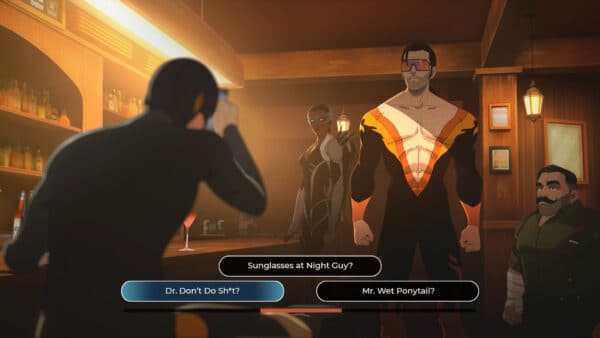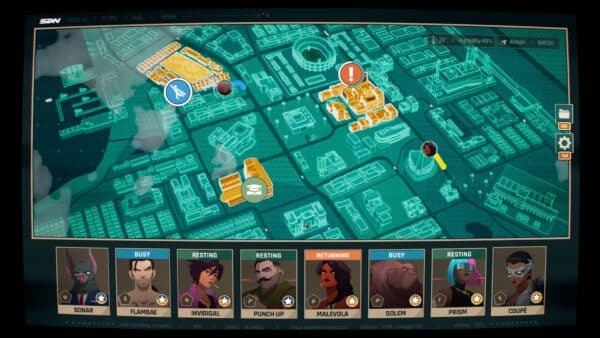
Dispatch New Update 1.000.008 Released on December 12

by Alex Co December 12, 2025 3:43 pm in Title Updates and Patches
Dispatch New Update 1.000.011

Developer AdHoc Studio has released Dispatch update 1.000.008 today, and this is an unannounced patch that we can confirm rolled out for the PS5 version. though we’re unsure whether the PC version got one too.

This is another minor update, so don’t expect much or any new features.
For more info, as well as some of the issues that have workarounds.

Dispatch New Update 1.000.0008 Released on December 12

As one might expect, the developers have not acknowledged today’s patch at all. That said, the most common issue most gamers have with Dispatch is crashing, which we’re hoping has been resolved.

Read on for the list of known issues and workarounds tied to the game.

KNOWN ISSUES & WORKAROUNDS

Crashes

If you are experiencing PC crashes, check the minimum specs and ensure all graphics drivers are up to date. You can also try disabling subtitle animation as this can cause memory leaks.
VISUAL PERFORMANCE

Make sure you’ve updated your graphics drivers

  • NVIDIA www.nvidia.com
  • AMD support.amd.com
  • Intel Cards downloadcenter.intel.com

Experiencing screen-tearing or black frames? VSync is enabled automatically but if you happened to toggle it off, go to Settings > Display and turn it back ON Disabling game overlays like Steam, Discord, or NVIDIA GeForce can also help. Experiencing weird color artifacts in your cinematics? This seems to be an issue only with Ryzen processors. Please send us more details so we can further diagnose and submit fixes: adhocla.com/bug-report

CONTROLS

Keyboard + Mouse If your mouse cursor is too small which can happen on ultrawide resolutions, adjust your pointer size via Mouse Settings in Windows. Controller If your controller is not recognized or stops working mid-game:

  • Restart the game with the controller connected.
  • Right-click Dispatch in Steam and select Properties > Controller. Then under Override for Dispatch, toggle the steam input setting to the opposite of what it is set to (enabled or disabled) in the dropdown menu. For non-XInput controllers such as PlayStation controllers, Steam Input should be enabled.
  • Disconnect all controllers and remove all controller devices from the Device Manager. Then, reconnect your primary controller and try again.

AUDIO

Make sure your audio drivers are up to date:

  • Open Windows Device Manager
  • Open the Audio Inputs and Outputs list of devices
  • Right-click on your audio device and choose ‘Update Driver’
  • If you are using a controller, make sure it is disabled as a sound device.

If the developers release a proper changelog, we’ll update the article with the info.

Stay connected to MP1st and the latest news by following us on Bluesky, X, Facebook, TikTok, YouTube, and Google News.

Tags: Dispatch
Avatar photo

Alex Co

Father, gamer, games media vet, writer of words, killer of noobs.